

Service Mode Tool for Canon Pixma Printers (iP4600, iP4700...): Tinkerer´s heaven
Since August 2008 Canon has launched printers, which are working with PGI-520Bk and CLI-521 ink cartridges.
If you get a message like "Waste tank full" or "Ink absorber full", this is the end of the line. You can either dispose of your printer or get it repaired by a Canon-Service-Center for about 45 Euros. Reason for that is an internal counter for the absorber, which cannot be reset by in-house means. This was different with their predecessors: A simple key combination did it.
Look here: Workshop: Change Waste-Ink-Tank Canon Pixma iP4000.
The following printers and AIO´s (sincs 2008) are affected:
- Canon Pixma iP3600, iP4600, iP4700
- Canon Pixma MP540, MP550, MP560, MP620, MP630, MP640, MP980, MP990
- Canon Pixma MX860, MX870


When the ink absorber is completely full the counter is on 100 percent. A green and an orange LED blink alternately seven times (that´s 14 times in total). And that means no more printing.
The driver shows a message like "Error code 5B00" and an advice to call the Service-Center.

There is a software on the internet which allows you to reset the internal counter to "0". When doing this you should also replace or wash the ink absorbers.
Put the printer in service mode
To apply this software you have to put the printer in service mode:
- Switch off the printer
- Push and hold the "Resume" button
- Push and hold the "Power" button
- Hold both buttons for about five seconds
- Let go of the "Resume" button
- Press the "Resume" button twice
- Let go of the "Power" button
When the green LED stops blinking and lights continuously the printer is in service mode.
 Tutorial: How to send a Canon Pixma iP4600 or iP4700 into servoce mode.
Canon´s service mode tool
You will find a "Service Mode Tool Version 1.050" on the internet. It will reset the counter of your waste ink absorber. We assume it has been placed illegally into the net, so DC will set no link or give you advice how to download it.

After installing the program you see a surface like the one shown above.
When you click the EEPROM tab the printer gives out a status page, which could look like that:
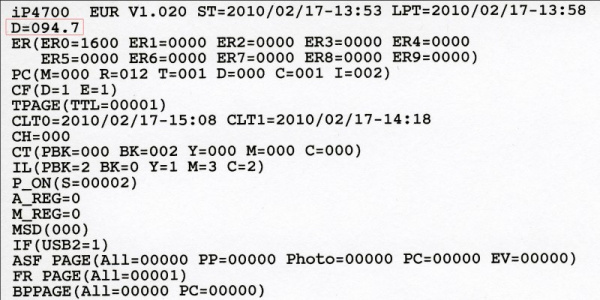
The second line (with a red frame) shows the percentage (D=094.7) of the filling level. Here it is 94.7 percent.
To reset the counter to zero level (D=000.0) go to "SET CLEAR WASTE INK" and click "MAIN", then choose "0" in the window to the right. Click the next window with the two questionmarks (??)
To check if everthing has been done correctly click "EEPROM" again and print out a status page. The second line should now read D=000.0.
To leave service mode switch off the printer and switch it on again.


